Activate membership plan to start learning.

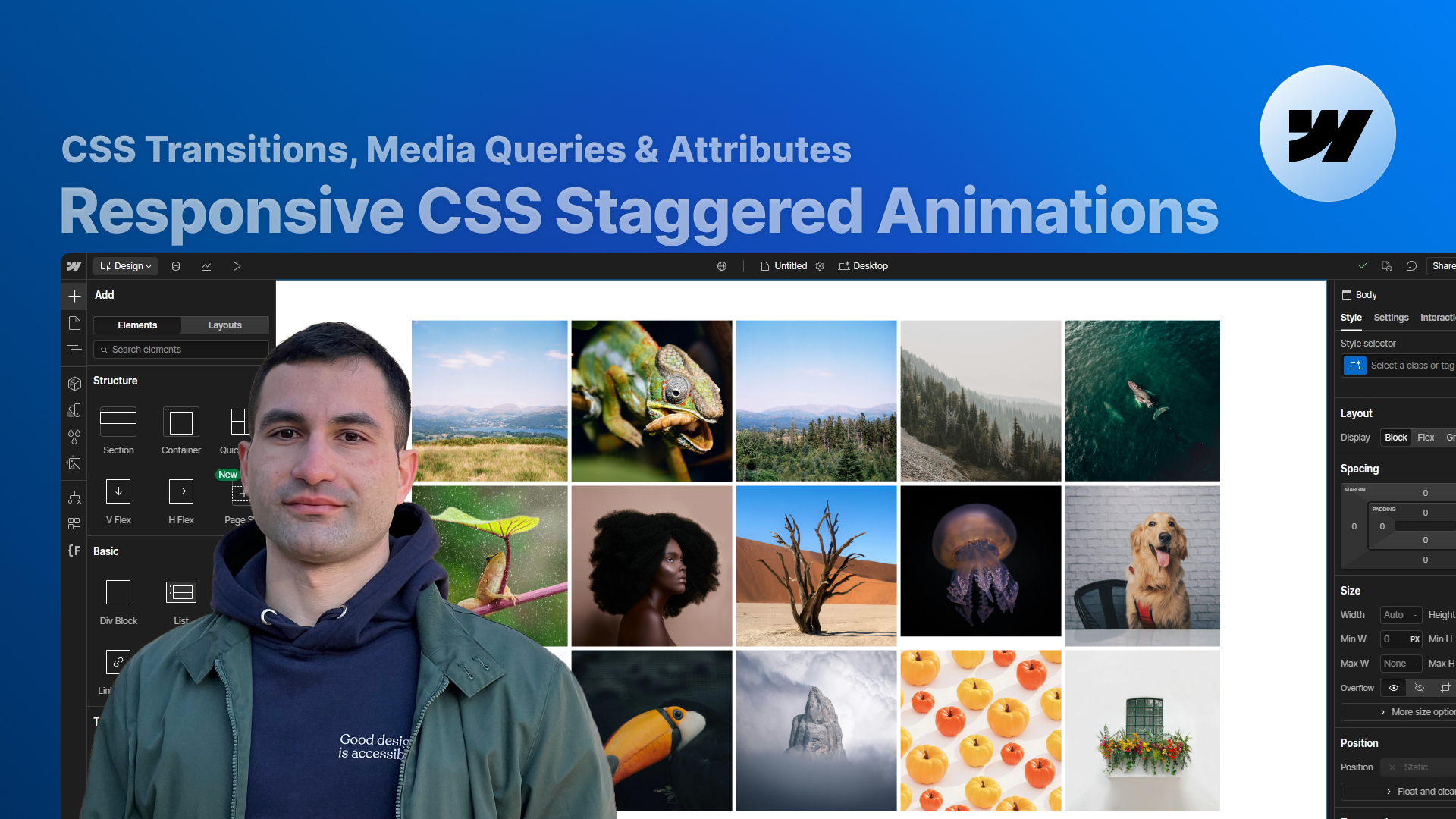
Responsive CSS Staggered Animations in Webflow

Learn how to build fully responsive staggered slide-and-fade animations in Webflow using only native tools and a bit of CSS. In this lesson, you’ll see how to combine transitions, attributes, and media queries to create reusable animations that adapt to any grid layout — even when working with CMS content.

アクセス制限

レッスン動画を閲覧するには、会員登録が必要です

レッスン動画を閲覧するには、会員登録と有料プランの加入が必要です

アクセス制限

レッスン動画を閲覧するには、有料プランの加入が必要です。

Lesson's Content

Creating a clean staggered animation in Webflow sounds easy… until you try to make it responsive, reusable, and maintainable across multiple layouts and breakpoints.

In this lesson, we’ll build a slide-and-fade staggered animation that works beautifully on any device — without writing custom JavaScript. Instead, we’ll rely on:

  • Webflow’s native scroll into view interactions
  • CSS transition-delay
  • CSS media queries
  • A small set of HTML attributes to keep everything flexible and scalable

By the end of the video, you’ll not only understand how the solution works, but also how to adapt it to your own grids, galleries, and CMS-based layouts.

1. Why native staggered animations are so hard in Webflow

We start from a simple but very common scenario:

you have a responsive grid or gallery, and you want each row of items to slide and fade in with a staggered effect when it scrolls into view.

Webflow lets you:

  • Animate a single element when it scrolls into view
  • Animate all items in a grid using classes

…but it doesn’t let you detect an entire row or assign a different delay to each item in that row based on its column position.

We briefly look at a “fake solution” where you:

  • Break the grid into multiple single-row grids
  • Animate each row separately

and see why this quickly becomes:

  • Hard to maintain
  • Painful to make responsive
  • Completely unusable with CMS Collection Lists, where you can’t target each item individually.

This is the limitation we’re trying to solve.

2. The core idea: attributes, transitions, and CSS

Once the problem is clear, we rebuild the layout using a single responsive grid and introduce the actual solution.

Each grid item:

  • Gets a dedicated attribute (for example fc-css-stagger="item")
  • Has two CSS transitions applied:
    • one for opacity
    • one for transform: translateY()

Inside Webflow, we create a very simple interaction:

  • Trigger: scroll into view
  • Target: all elements with the grid item class
  • Actions:
    • Set opacity back to 100%
    • Reset transform on the Y axis to 0
  • Duration: 0ms in the interaction (the real animation comes from the CSS transitions)

Then we move the “heavy lifting” to CSS:

  • We define the initial state (items are shifted down and invisible)
  • We use transition-delay to create the staggered effect based on the item’s column

This keeps the Webflow interaction extremely lean (2 actions only) and pushes the complexity into CSS, where it’s easier to reuse and customize.

3. Making it responsive with media queries

The key to a truly flexible staggered animation is teaching CSS how many columns each layout has at each breakpoint.

We use nth-child selectors and media queries to say:

  • “When there is 1 column (mobile portrait), all items share the same delay”
  • “When there are 2 columns, the elements in the second column get a slightly higher delay”
  • “When there are 3 or 4 columns, each column gets its own delay value”

For each breakpoint, we define a small “block” of CSS where:

  • The coefficient in nth-child() matches the number of columns
  • The index defines which column we are targeting
  • The transition-delay controls how much stagger we want between columns

Once the pattern is clear, you can easily:

  • Add new breakpoints (e.g. a 1440px breakpoint with 5 columns)
  • Adjust the delay values to get the exact timing you like
  • Reuse the same logic on other layouts

4. Two different grids on the same page

In the second example, we push the solution further:

  • We have two grids on the same page
  • Each grid has a different column configuration at the same breakpoint

To handle this, we simply:

  1. Give the second grid a different attribute value (for example fc-css-stagger="item-2")
  2. Duplicate the CSS block and adjust:
    • The attribute selector
    • The number of columns for each breakpoint
    • The delays, if needed

This lets us control multiple independent staggered animations across the same page without duplicating interactions in Webflow.

5. Working with CMS content and complex layouts

Finally, we move to a CMS template page and apply the same technique to a layout built with:

  • A Webflow Collection List
  • A custom grid layout, based on another Supasaito tutorial

Here, all items come from a multi-image field, so we can’t target them one by one manually.

Thanks to the attribute-based approach, that’s not a problem:

  • We add the stagger attribute to the gallery item
  • We confirm that the item has:
    • The required transitions
    • The same scroll-into-view interaction as before
  • We adapt the CSS:
    • Number of columns per breakpoint (e.g. 3 columns on desktop and tablet, 2 on landscape and portrait)
    • Matching media queries and delay values

The result:

a fully dynamic, CMS-driven gallery with a clean responsive staggered slide-and-fade animation — all controlled with a small, readable chunk of CSS.

6. Limitations and next steps

There is one important limitation to keep in mind:

This approach assumes that each row has the same number of columns.

If your layout has rows with different column counts, the logic behind the stagger breaks down.

At the end of the lesson, we briefly discuss this scenario and tease a dedicated follow-up video to tackle it properly.

Who this lesson is for

This tutorial is for you if:

  • You’re comfortable with Webflow but want to go beyond basic interactions
  • You like solutions that are reusable, efficient, and clean
  • You want to understand why a technique works, not just copy-paste code
  • You work with CMS collections, galleries, or image-heavy layouts and want to bring them to life

If you’re interested in more advanced layout and animation ideas, you might also enjoy:

  • My tutorial on text reveal animations with Webflow’s Custom Element
  • My dynamic grid gallery lesson, where we build a creative custom layout for CMS content

Both are part of a growing library of free Webflow resources and cloneables on Supasaito.

Course Lessons

No items found.

Learning Progress

Press "Finished" after you watched the lesson to track your progress