Webflow Attribute-Powered Solutions
.jpg)
Transform your Webflow projects from static pages into dynamic, award-winning experiences without writing a single line of code. Master "Webflow Attribute-Powered Solutions" to easily implement complex GSAP animations, WebGL fluid gradients, and advanced CMS layouts using a simple, flexible attribute-based system. Click here to elevate your no-code development skills and scale your design business today!
Target Audience & Prerequisites
- Who is this for: Intermediate Webflow developers, freelance web designers, and no-code agency owners who want to offer premium, highly interactive, and logic-heavy websites without having to learn complex JavaScript.
- Prerequisites: A basic understanding of Webflow's interface (including styling elements, CSS classes, and CMS collections) and a free or paid Webflow account. No prior coding experience required.
What You Will Learn
- Build complex, award-winning interactions—like GSAP image sequences, draggable sliders, and WebGL distortion effects—without writing any JavaScript.
- Master the power of Webflow custom attributes to easily configure, scale, and control advanced functionalities seamlessly across both static and CMS-driven pages.
- Implement essential UX/UI structural enhancements, including responsive dynamic table of contents, automated smart breadcrumbs, and real-time mirrored input forms.
- Design highly engaging, interactive backgrounds and cursor tracking effects using embedded shaders, Three.js, and HTML5 canvas APIs directly in the visual workspace.
- Optimize high-performance, accessible components that look and function flawlessly across all responsive breakpoints and screen readers.
Difficulty Level
Difficulty Level: Advanced
Justification: Although the implementation relies on a simplified "attributes-only" approach, the course is rated Advanced because it requires configuring highly sophisticated web development concepts including WebGL canvas manipulation, external API integrations using Postman, and complex, dynamic CMS-driven layouts.
Detailed Course Breakdown
Many Webflow developers hit a wall when trying to build highly advanced, interactive websites. You see stunning effects like Apple-style image sequences, draggable GSAP sliders, and WebGL fluid gradients on top-tier sites, but replicating them usually requires complex JavaScript knowledge. Relying solely on native interactions can leave your sites feeling rigid, and wrestling with custom code often leads to broken layouts, performance issues, and endless debugging.
"Webflow Attribute-Powered Solutions" completely bridges this gap. Throughout this comprehensive learning path, you will dive into a rich library of advanced components—from dynamic table of contents and automated smart breadcrumbs to interactive GSAP draggable cards and staggered animations. The beauty of this course lies in its unique methodology: you won't need to write any custom code. Instead, you will learn how to leverage simple HTML custom attributes to control, configure, and scale sophisticated GSAP, Three.js, and canvas scripts seamlessly within Webflow's visual interface.
By the end of this journey, you will have completely transformed your Webflow workflow. You will possess the skills to confidently implement premium, logic-heavy features—like multi-step mirrored inputs, interactive cursor tracking, infinite pause-on-hover marquees, and responsive dynamic grid galleries—in mere minutes. Whether you are working with static layouts or complex CMS structures, you will be able to scale your agency or freelance business by offering high-end, custom-coded functionality with absolute no-code simplicity.
FAQs
Do I need prior coding experience in JavaScript or GSAP to succeed in this curriculum?
Not at all! This entire curriculum relies on a no-code, "attributes-only" approach. All complex JavaScript, GSAP, and WebGL code is pre-written and provided for you. You simply apply custom HTML attributes directly to your Webflow elements to activate and configure the advanced animations.
What specific, real-world projects will I be able to build after completing this path?
You will be able to build premium, production-ready interactive experiences like Apple-style image sequence scroll animations and interactive fluid gradient backgrounds. You'll also master advanced UI features like GSAP draggable cards, dynamic grid galleries, and automated tables of contents.
What is the expected time commitment and difficulty level for adding these features?
Implementation is incredibly fast, allowing you to bypass the steep learning curve of coding complex animations from scratch. You can configure these high-level features in minutes by dropping a pre-built script into your project and adjusting simple values in Webflow's settings panel.
How does this curriculum differ from basic Webflow interaction tutorials?
Standard tutorials often rely on basic native interactions or force you to copy-paste rigid, messy custom code. This path provides a highly scalable, component-driven system built on top of high-performance libraries like GSAP and Three.js, prioritizing accessibility, responsiveness, and easy maintenance.
Will these advanced animations work with my dynamic Webflow CMS content?
Yes, these attribute-based solutions are meticulously designed to be completely CMS-friendly. You can seamlessly apply advanced effects—such as staggered GSAP animations, dynamic grid galleries, and draggable cards—directly to your dynamic Webflow Collection Lists.
Lessons
.jpg)
How to Build an Infinite Webflow Lightbox
Native Webflow lightbox galleries suffer from a restrictive user experience: navigation stops abruptly when a user reaches the first or last item. This lesson provides an elegant solution to this limitation by implementing a seamless, infinite looping navigation system. By overriding default constraints, developers can craft continuous, unrestricted browsing experiences that feel fluid, intentional, and highly polished.
The technical implementation is remarkably efficient. The enhancement relies on a robust custom script placed within the page settings, activated by applying a single custom attribute—data-lightbox-trigger—directly to the native lightbox element. Viewers will master integrating this setup across both dynamically generated CMS collections and statically constructed galleries. Because the script interacts with standard Webflow lightbox grouping features, the infinite loop logic scales automatically across multiple grouped items.
Crucially, this upgrade champions digital inclusivity and accessibility. The underlying code is engineered to ensure that users relying on assistive technologies, such as screen readers or keyboard-only navigation, can traverse the gallery indefinitely without losing orientation or encountering blocked interactions. Upon completing this guide, viewers will have built a production-ready, fully accessible component that functions flawlessly across all devices with minimal development overhead.
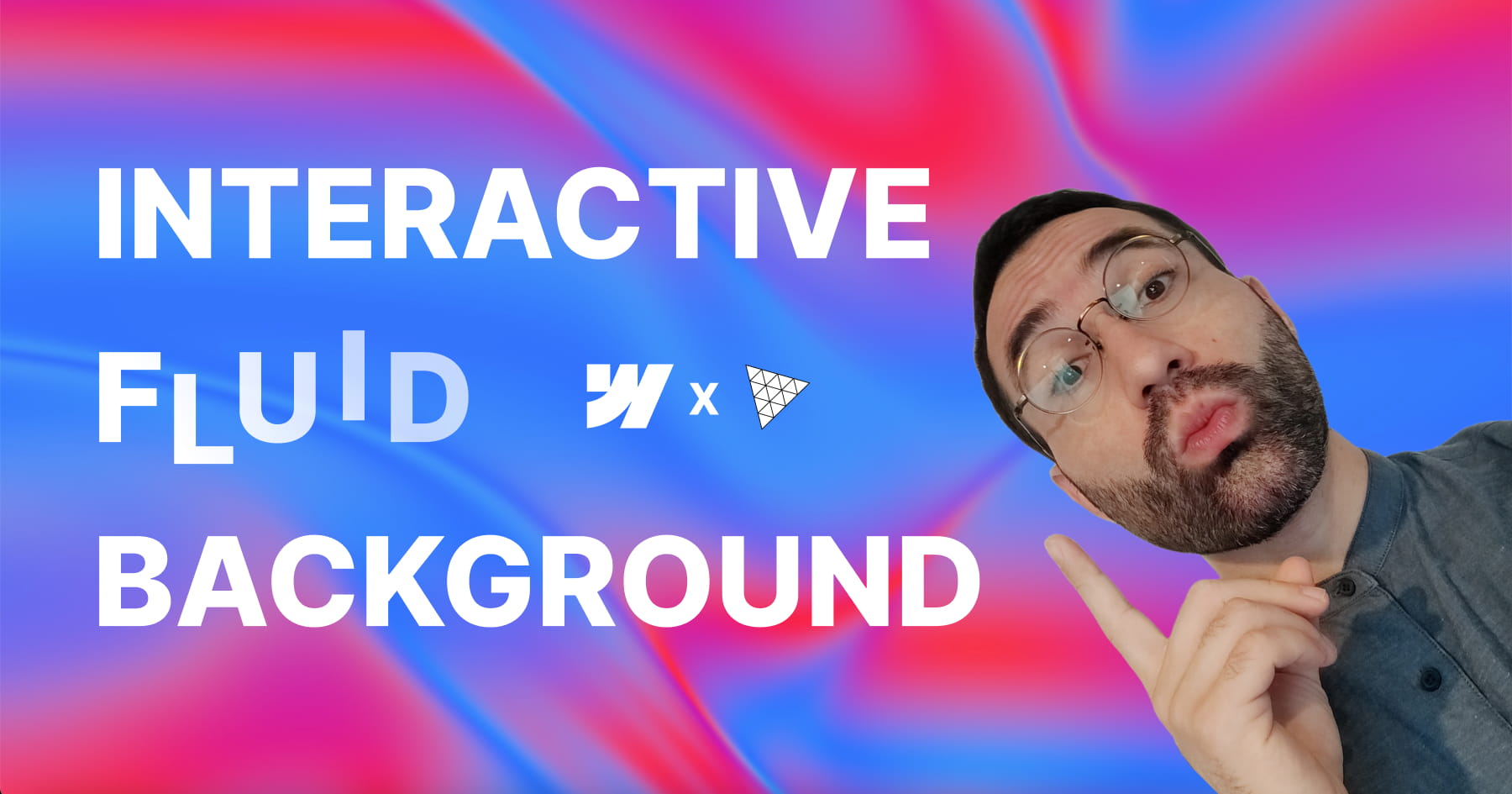
Add Interactive Fluid Gradients in Webflow
This tutorial empowers designers to transform static web backgrounds into immersive, fluid interactive experiences using a high-performance WebGL solution that requires absolutely no coding. By leveraging a custom script built on the powerful 3.js library, users can implement "liquid color" backgrounds that react dynamically to mouse movements, instantly elevating the aesthetic value and interactivity of a site. The video demonstrates that complex shader-based motion effects, often reserved for advanced developers, are now accessible via a simple attribute-based workflow within Webflow.
The core technical value of this lesson lies in its demonstration of a robust configuration workflow that eliminates the tedious "publish-and-check" cycle. Viewers are introduced to a hidden Graphical User Interface (GUI) unlocked by a specific custom attribute (fc-fluid-gradient-gui), allowing for real-time, browser-based fine-tuning of complex parameters such as fluid decay, brush strength, and flow speed. This feature grants designers granular control over the physics and visuals of the gradient, ensuring the final output matches their exact design vision without guesswork.
Finally, the tutorial bridges the gap between visual decoration and functional User Experience (UX) design by applying these fluids to a real-world Hero section. It details how to link the background's behavior to interface elements—specifically, creating a "magnetic" relationship where hovering over a Call to Action (CTA) button intensifies the background’s vibrancy. This technique creates a cohesive, responsive environment that guides user attention and enhances the overall perceived quality of the digital product.

How to Add an Interactive Water Ripple Effect in Webflow Without Code
This comprehensive tutorial introduces a sophisticated, no-code methodology for integrating interactive water ripple effects into Webflow projects using a custom attribute system. Hosted by Francesco from SupaSaito, the video demonstrates how to deploy a WebGL-based distortion effect that can be applied to any element—from static hero sections to dynamic CMS galleries—without writing complex JavaScript. The core value of this solution lies in its accessibility and flexibility; it transforms a technically complex jQuery and WebGL implementation into a user-friendly workflow, allowing designers to enhance visual engagement with "zero code" while maintaining strict control over customization and performance.
Viewers will achieve a deep understanding of how to configure these effects using a unique "live tweaking" workflow. By applying specific attributes like fc-repples-config, users generate an embedded GUI panel on the live site, enabling real-time adjustment of parameters such as texture resolution, drop radius, and wave perturbance. This approach eliminates guesswork, allowing designers to visualize the perfect aesthetic in the browser before permanently assigning the values as data attributes within Webflow. Furthermore, the tutorial solves common layout challenges by teaching users how to utilize background image overlays for elements that require structural integrity, ensuring the effect works seamlessly with responsive designs.
Finally, the guide emphasizes the production of professional, high-performance web assets by integrating critical accessibility and optimization features. Viewers will learn to implement global controls for CMS collections using grouping attributes, ensuring scalable management of multiple items. The video also details essential best practices, such as disabling the resource-intensive WebGL effect on mobile devices to preserve battery life and creating accessible toggle buttons that allow end-users to pause the animation. The result is a polished, fully cloneable component that balances high-end visual impact with usability and performance standards.

How to Build GSAP Draggable Cards in Webflow
This instructional module provides a comprehensive framework for engineering high-fidelity "swipe-to-toss" interactions within Webflow, replicating the tactile engagement found in physical card decks or instant photo galleries. By leveraging a "no-code" attribute-based system, the tutorial bridges the gap between complex JavaScript animation and visual development, enabling designers to implement sophisticated drag physics without writing code from scratch. The core value lies in its ability to transform static layouts into dynamic, satisfying user experiences suitable for portfolios and product showcases.
Viewers will learn to architect a robust HTML structure that manages absolute positioning and overflow behaviors to ensure a polished, glitch-free interface. The guide details the precise implementation of custom attributes (such as fc-dragable-card) to link UI elements—including wrappers, cards, and reset triggers—to the underlying interaction script. Furthermore, the specific configuration of CSS properties, such as pointer-events, is explained to ensure that the interactive stack does not obscure underlying functional elements like buttons.
By the conclusion of this lesson, users will achieve a fully scalable solution that integrates seamlessly with Webflow CMS Collections, utilizing structural selectors to apply dynamic styling variances like card tilt. The resulting component is fully responsive, optimizing the experience for mobile devices by adjusting wrapper dimensions and border styles. Additionally, users will understand how to granularly customize the interaction's physics—modifying rotation sensitivity, throw distances, and easing functions—through simple attribute adjustments to match their specific brand aesthetic.
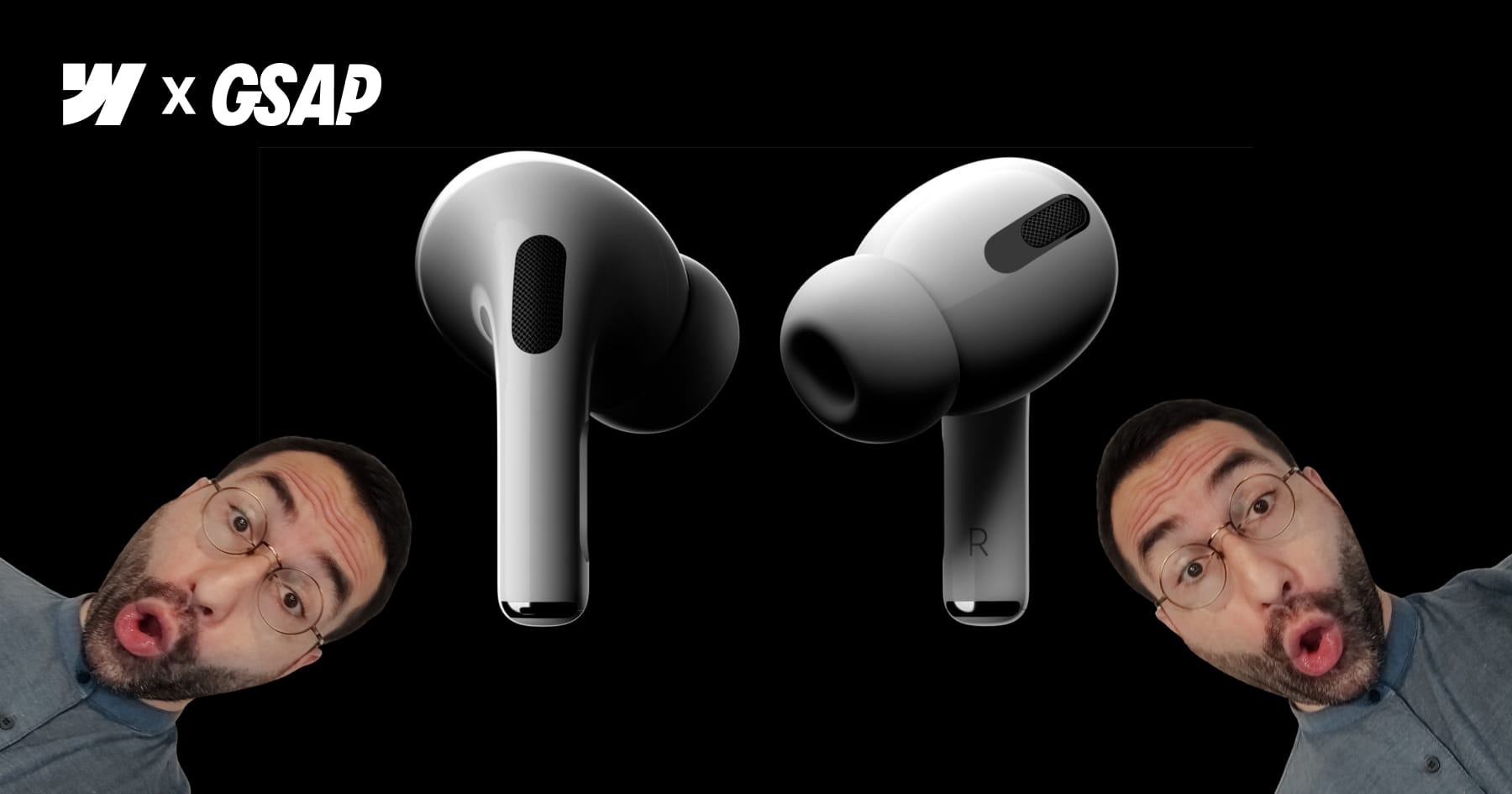
How to Build an Apple-Style Image Sequence Animation in Webflow
This tutorial empowers web designers to replicate the iconic, fluid scroll animation found on the original Apple AirPods Pro landing page, moving beyond common shortcuts like Lottie files to rebuild the effect from first principles using Webflow and GSAP ScrollTrigger. The core value lies in its comprehensive, high-fidelity workflow: rather than relying on video tags, the user learns to manipulate a sequence of approximately 150 high-resolution frames that update dynamically with the user's scroll, ensuring a "perfectly fluid movement" that feels interactive and premium. This approach grants designers total control over the visual progression and performance of the animation without sacrificing quality.
The instructional journey bridges the gap between design and development by introducing a sophisticated asset management strategy. Viewers achieve proficiency in a complete "no-code" friendly pipeline that includes extracting frames from video sources, compressing them into efficient AVIF formats, and—most critically—leveraging the Webflow API via Postman to automate the retrieval of asset URLs. This eliminates the tedious and error-prone process of manually copying hundreds of file links, providing the user with a scalable, reusable method for accessing project assets programmatically.
By the conclusion of this masterclass, the viewer will have implemented a fully responsive, accessible scroll-scrubbing component using HTML5 Canvas and sticky positioning. The final architecture allows for extensive customization through simple HTML attributes, enabling designers to control parameters such as playback speed, start/end trigger points, and image fitting (cover vs. contain) across different device breakpoints. The result is a professional-grade, highly optimized interaction that enhances user engagement while adhering to inclusive design standards.
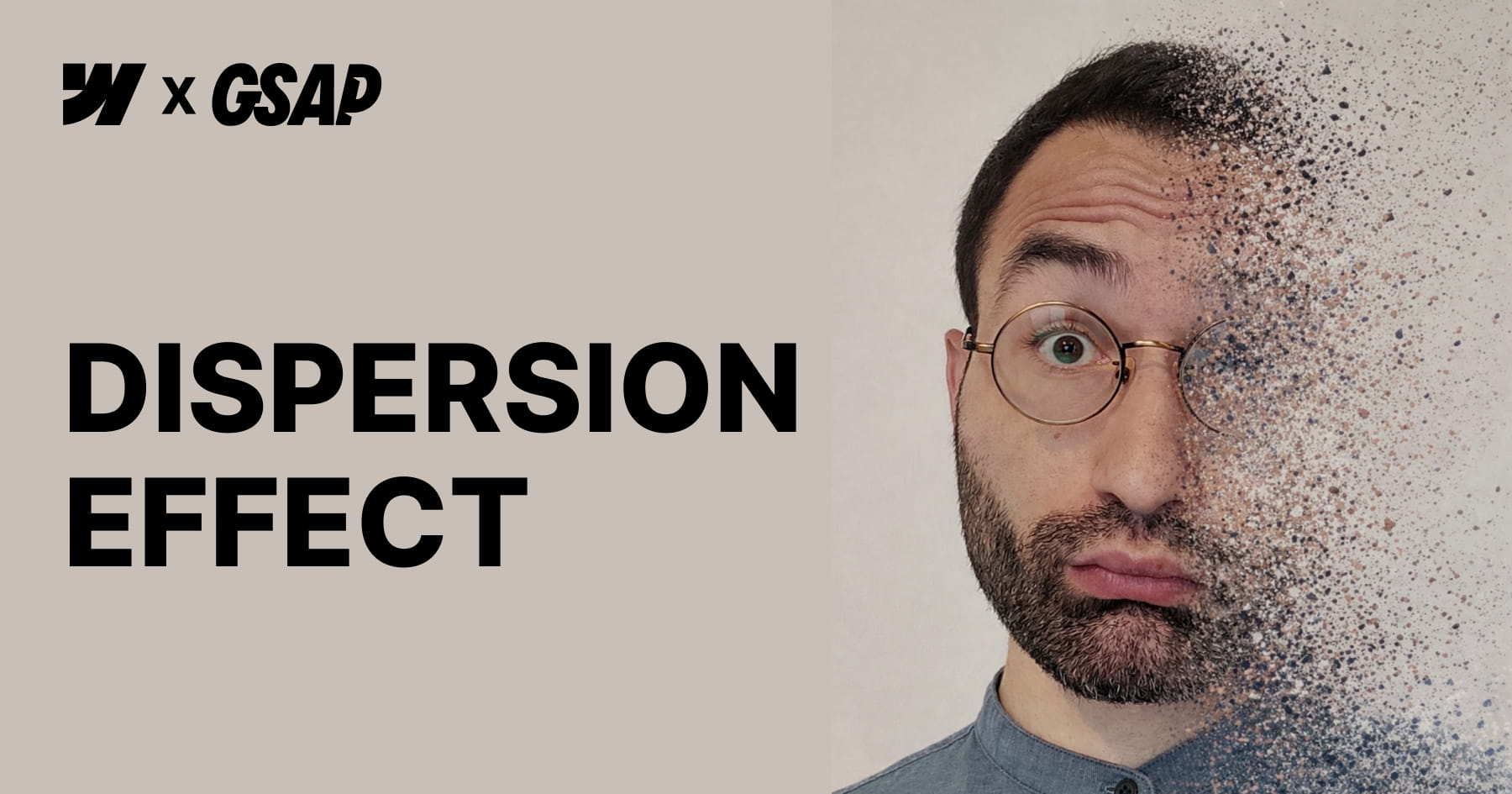
How to Create a GSAP Disintegration Effect in Webflow
This tutorial empowers Webflow developers to implement a high-impact "disintegration" visual effect powered by GSAP ScrollTrigger, designed to elevate the visual storytelling of a website without requiring manual JavaScript coding. The core value of this resource lies in its "low-code" architecture; viewers will achieve a cinematic animation where images fragment into particles upon scroll simply by applying specific custom attributes to standard HTML elements or CMS content. By abstracting complex logic—such as html2canvas snapshotting and pixel manipulation—into a configurable script, the video enables designers to focus purely on visual implementation and layout strategy.
Viewers will gain a comprehensive understanding of how to configure and control the animation's behavior directly within the Webflow Designer. The tutorial details how to manipulate specific parameters through optional attributes, allowing for precise control over the rotation angle, particle scatter amplitude, and the exact scroll start and end triggers. Furthermore, the guide emphasizes the critical structural requirements necessary for the effect to function, such as utilizing non-static positioning for parent components and managing overflow settings to prevent layout issues as fragments disperse.
Finally, the video ensures the resulting designs are production-grade by addressing performance optimization and accessibility standards. Users will learn strategies to mitigate the high computational cost of the effect—such as limiting usage to key visuals and optimizing image resolution—while verifying that screen readers can still access "alt" text even after the image is converted into canvas elements. The session concludes by demonstrating how to harmoniously layer this custom effect with native Webflow interactions, resulting in a cohesive and sophisticated motion system.
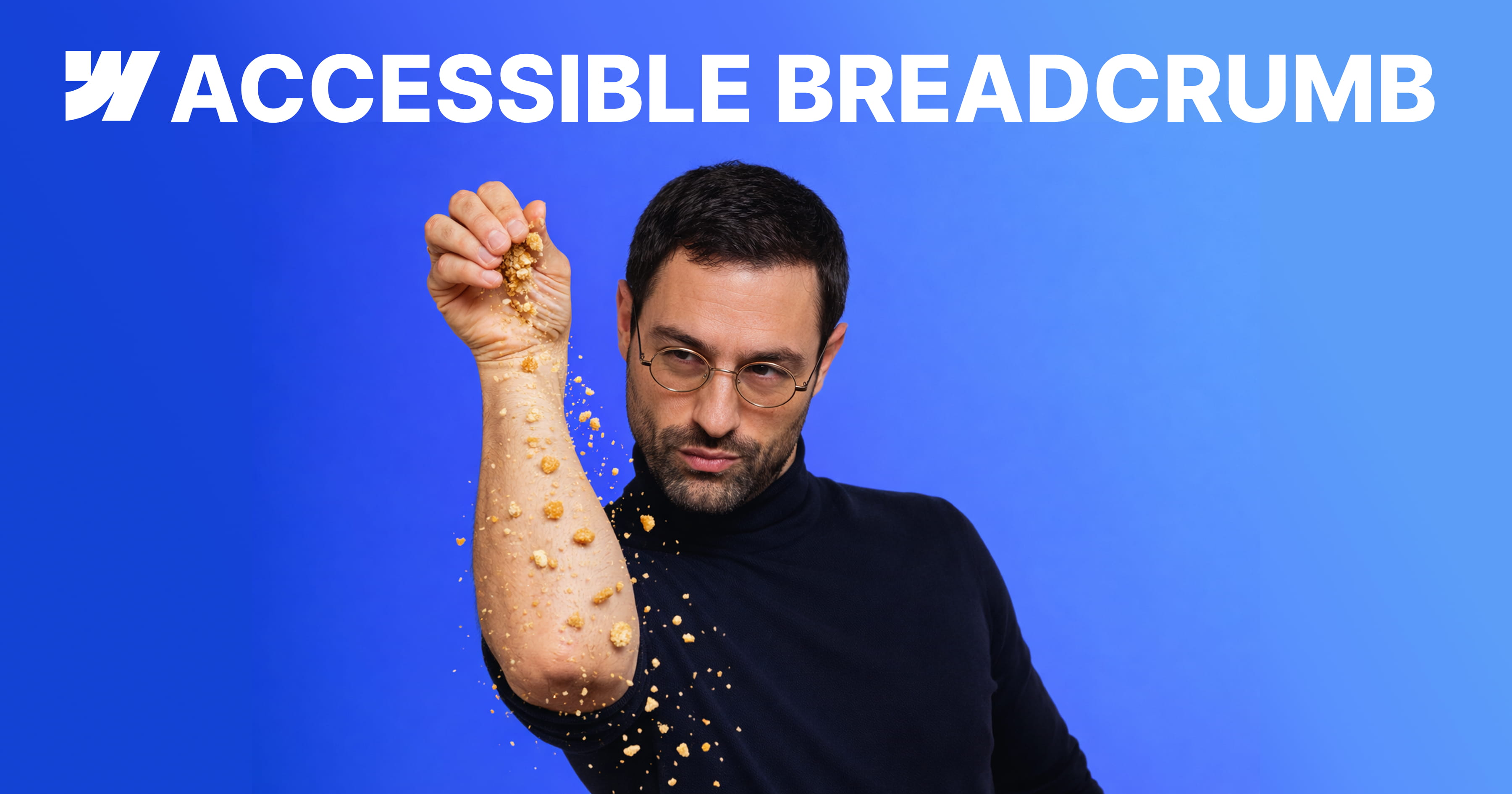
How to Build Accessible Manual and Dynamic Breadcrumbs in Webflow
This tutorial provides a comprehensive guide to constructing robust breadcrumb navigation systems within Webflow, moving beyond simple visual aids to create fully accessible and structurally sound interface elements. The presenter, Francesco from SupaSaito, demonstrates how to implement two distinct solutions: a manually configured component designed for sites with shallow architectures, and a dynamic, automated system ideal for complex, nested CMS projects. By following this workflow, developers ensure their navigation is not only aesthetically flexible via Webflow components but also rigorously optimized for screen readers and search engine organization through the use of semantic ordered lists and ARIA attributes.
The first segment details the engineering of the manual breadcrumb, emphasizing the importance of component properties for maintaining design consistency while allowing for content flexibility. Viewers learn to build a reusable component that supports up to four levels of navigation, utilizing visibility properties to toggle between various separators—such as CSS-generated slashes, icons, or text characters—without altering the core structure. Crucially, this section addresses usability best practices by implementing specific logic to disable interaction for non-clickable intermediate paths, ensuring a seamless user experience that avoids broken links.
The final portion of the tutorial elevates the design into a scalable, automated solution powered by custom JavaScript that dynamically generates breadcrumb trails based on the active URL structure. This advanced method eliminates the need for manual updates on every page by automatically detecting path segments, formatting text labels from slugs, and verifying link validity to handle "dead" paths intelligently. Ultimately, the viewer will master the ability to deploy a "set-and-forget" navigation system that adapts to CMS layouts and custom folder structures, significantly reducing long-term site maintenance.

How to Create an Infinite Marquee in Webflow
This instructional video provides a comprehensive update to the popular "infinite marquee" solution for Webflow, empowering users to implement sophisticated scrolling animations using a completely no-code approach. The core value of this tutorial lies in its ability to eliminate the need for writing JavaScript; instead, viewers achieve full configuration—including scroll direction and speed—directly through custom attributes applied within the Webflow designer. This ensures that even users without coding knowledge can deploy high-performance, continuous animations that integrate seamlessly with Webflow’s native interactions.
The guide introduces several advanced features that significantly enhance design flexibility and user experience, such as smooth pause-on-hover, drag toggling, and specific styling for the "active" slide within the marquee. Users will learn how to ensure full responsiveness by setting unique speeds for different breakpoints, preventing layout issues on mobile or tablet devices. Additionally, the video demonstrates how to apply these techniques to both static content and Webflow CMS Collections, allowing for dynamic, data-driven marquees.
Finally, the tutorial prioritizes implementation standards and accessibility. It outlines a strict class-naming convention based on the Splide library—requiring specific classes like splide__track and splide__list—to ensure functionality. The viewer will also master accessibility best practices by learning how to apply aria-label or aria-labelledby attributes, ensuring the marquee is usable for all site visitors. The process concludes with a simple copy-paste workflow for the necessary script, requiring no further modification by the user.

How to Auto-Open Dropdowns in Webflow
This tutorial provides a comprehensive guide on transforming standard Webflow dropdowns into intelligent, automated UI components without writing a single line of JavaScript. By leveraging a specific set of custom attributes, you will learn to configure dropdowns that open automatically based on specific user triggers—such as page load, scrolling into the viewport, or clicking external links. The core value lies in the "no-code" implementation strategy, allowing designers to achieve sophisticated behavioral logic solely through Webflow’s native Designer interface and the custom attribute system.
A significant portion of the instruction focuses on integrating these behaviors with Webflow’s CMS, enabling dynamic control over interaction logic. You will discover how to bind custom attribute values to CMS fields, allowing for scalable management of dropdown states across large collections, such as FAQ pages where specific answers need to be highlighted. This approach bridges the gap between static design and dynamic content, ensuring that automated behaviors like "open on load" can be programmatically assigned to individual collection items via the CMS backend.
Finally, the video emphasizes user experience refinement through advanced logic controls. You will learn to manage viewport-dependent behaviors by disabling automation on specific breakpoints (e.g., mobile devices) to prevent content shifting. Additionally, the tutorial demonstrates how to create "dropdown groups" to prevent conflicts when users interact with multiple elements, and how to implement cross-page deep linking, where a click on one page triggers a specific dropdown to open on another.
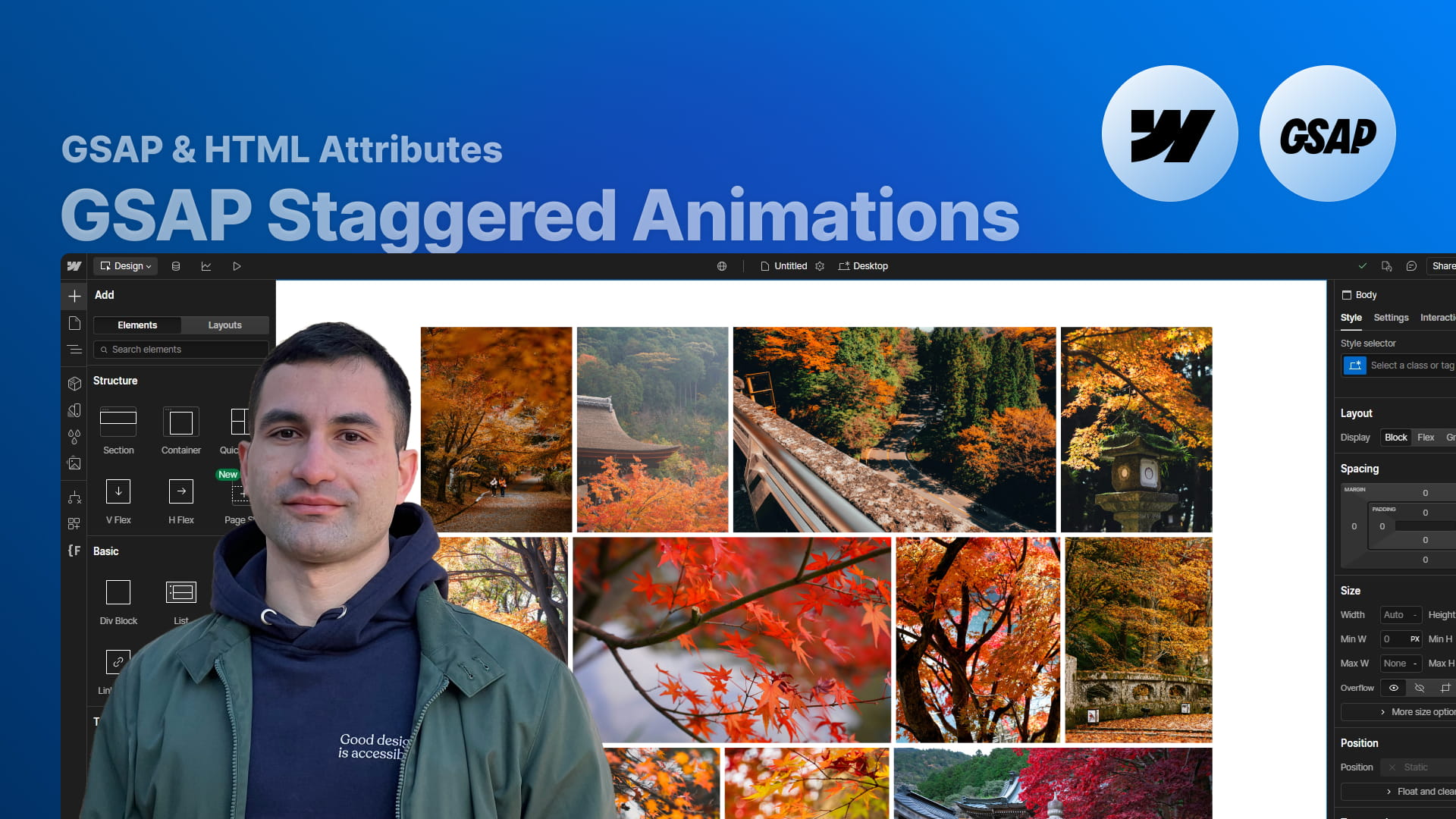
How to Create No-Code GSAP Staggered Animations in Webflow
This tutorial presents a powerful, no-code methodology for integrating GreenSock Animation Platform (GSAP) staggered animations directly into Webflow projects. By leveraging a specific set of custom attributes, designers can apply sophisticated slide and fade effects to gallery layouts or collection lists without writing a single line of JavaScript. The core instruction focuses on applying the primary fc-gsap-stagger attribute to a parent wrapper, instantly enabling complex motion effects that are traditionally reserved for advanced developers.
The true value of this approach lies in the granular control it provides over the animation's behavior and timing. Viewers are equipped with the knowledge to manipulate critical variables such as the vertical offset, animation duration, easing functions, and the specific time interval between elements using attributes like each or amount. Furthermore, the system supports advanced sequencing capabilities, enabling animations to originate from various starting points—such as the center, edges, or a randomized order—providing significant creative freedom to match specific design requirements.
Ultimately, this solution is designed for high scalability and versatility across diverse site architectures. The tutorial demonstrates that the attributes function flawlessly with multiple unique lists on a single page, Webflow CMS collections, and complex custom grid layouts. By mastering these techniques, users will achieve a high-end, interactive aesthetic for portfolios, testimonial sections, or content lists, significantly elevating the user experience through professional-grade motion design.
How to Build a Custom Video Popup in Webflow (Update)
This tutorial serves as a critical expansion to SupaSaito’s custom video popup solution for Webflow, upgrading the existing framework to support a hybrid environment of both Vimeo and YouTube content. The core value lies in the ability to utilize a single, reusable component that seamlessly switches between video hosting platforms without requiring complex reconfiguration or separate structural setups. This ensures developers can maintain a clean project architecture while offering flexibility in content sourcing.
The instruction focuses heavily on the technical nuances required to properly integrate YouTube within this custom build. It guides the viewer away from using standard share links, demonstrating instead how to extract the specific embed source URL required for the component to function. Furthermore, the video emphasizes the necessity of appending the enablejsapi=1 parameter to the URL, a crucial step that enables the JavaScript code to control video playback programmatically, ensuring the user experience remains consistent regardless of the platform used.
Finally, the session introduces an aesthetic enhancement to the component, allowing for greater design consistency through a new property dedicated to the play icon's color. Viewers will learn how to customize this element using standard color names, hexadecimal codes, or RGB values. By the conclusion of the video, the viewer will have a robust, "clonable" Webflow component that is both functionally versatile and visually adaptable.

How to Build a Dynamic Grid Gallery in Webflow
This tutorial presents a sophisticated solution for implementing dynamic, CMS-driven image grids in Webflow that respect the original aspect ratios of visual assets. Unlike standard grid implementations that rely on object-fit: cover—which often creates undesirable cropping—this method utilizes a custom script configured via simple attributes to calculate precise row heights and widths automatically. The core value lies in the ability to create "masonry-like" layouts where images of varying proportions share rows seamlessly while maintaining perfect alignment and full visibility, ensuring that every detail of a portfolio or gallery is preserved.
The technical instruction focuses on a low-code implementation strategy, requiring users to apply specific attributes such as fc-gallery="list" to container wrappers and fc-gallery="item" to child elements. The presenter details the cascading logic of the system, where column counts set for larger breakpoints (e.g., via columns-desktop) automatically apply to smaller devices unless explicitly overridden by specific attributes like columns-tablet. This granular control allows designers to define exactly how many images appear per row across Desktop, Tablet, Landscape, and Portrait views without writing complex media queries.
By the end of this video, users will achieve a highly flexible, scalable workflow capable of handling both dynamic CMS collections and static content blocks with equal precision. The tutorial also addresses critical production details, such as handling incomplete rows to prevent layout distortion and optimizing loading performance by manually setting item widths to ~40% in the Designer. This specific step ensures Webflow generates and serves high-resolution image assets rather than pixelated thumbnails, guaranteeing a professional finish for high-end web projects.
How to Build a Custom Video Popup in Webflow
This tutorial provides a comprehensive guide to engineering sophisticated custom video popups within Webflow, transforming static elements into dynamic, professional-grade interfaces. By leveraging a specific set of custom attributes rather than complex manual coding, the presenter demonstrates how to create a seamless user experience where videos automatically play upon opening and pause immediately when the popup is closed or the background is clicked. The core value lies in the robustness and flexibility of the solution, which supports custom easing functions, animation durations, and specific behavioral triggers to ensure the interface feels polished and responsive.
The technical instruction focuses on the precise architecture of the popup component, utilizing a specific naming convention for attributes like fc-video-popup to define the component, its triggers, and close buttons. Viewers will master the implementation of iframe elements to embed Vimeo content, ensuring proper source linking and frame behavior. Furthermore, the video addresses complex scenarios, such as assigning multiple trigger buttons to a single popup and managing multiple distinct popup instances on a single page by utilizing unique attribute values (e.g., component-2) and properly managing script execution to prevent code conflicts.
Ultimately, the viewer achieves a scalable, CMS-ready workflow. The tutorial concludes by converting the custom element into a reusable Webflow Component with dynamic properties for video links, thumbnails, and script visibility. This allows users to bind the popup directly to Webflow’s CMS Collections, enabling the automatic population of video content across template pages without manual reconfiguration. This empowers designers to deploy high-end video interactions globally across a site with efficiency and consistency.

How to Sync Input Fields in Webflow Using Mirror Input Values
This instructional module details the implementation of Finsweet’s Mirror Input Values solution, a no-code method for synchronizing Webflow input fields in real-time. The tutorial demonstrates how to leverage simple custom attributes to instantly reflect user data from a "trigger" field to a "target" field, thereby creating dynamic and engaging web experiences without requiring complex programming knowledge.
Viewers will learn to configure sophisticated form behaviors by manipulating Webflow custom elements, converting them into read-only inputs or text areas to display dynamic content. The guide specifically covers technical nuances, such as setting the "tag" property to input and applying specific type attributes, enabling developers to build personalized greetings and real-time visual previews effectively.
Beyond basic setup, the video outlines three distinct architectural patterns: creating personalized UI messaging, generating live content previews for items like postcards, and auto-filling complex forms to reduce user error. The lesson concludes with high-level best practices, urging developers to prioritize User Experience (UX) by clearly labeling linked fields and implementing mirroring features only where they genuinely enhance the user journey.